Continuous automatic git version history
You never have to run terminal commands or configure git branches. Every time you save a note, Tessamark writes a commit automatically.
The git repository does not pollute your document folders with visible .git directories. Tessamark maintains shadow git repositories inside the application's private data storage directory (under history/). The shadow repository points directly at your files on disk, ensuring version tracking never interferes with your file tree. Nothing is placed beside your notes unless folder sync is turned on in Settings, which creates only .mde/history/ packs.
Version history and restore are permanently free on every platform. On the free tier, history is presented as a plain chronological list of versions, and restoring any past save is always free. Tessamark Pro adds the richer visual timeline graphics and the side-by-side diff editor.
The timeline (Pro) and free version list
For free users, version history is shown as a plain list of commits with restore actions. Tessamark Pro adds the visual timeline view, showing commit branches, graph markers, author details, and relative save timing.
You can toggle between inspecting the current note (File) or the entire workspace (Workspace) using the scope picker at the top of the history panel.
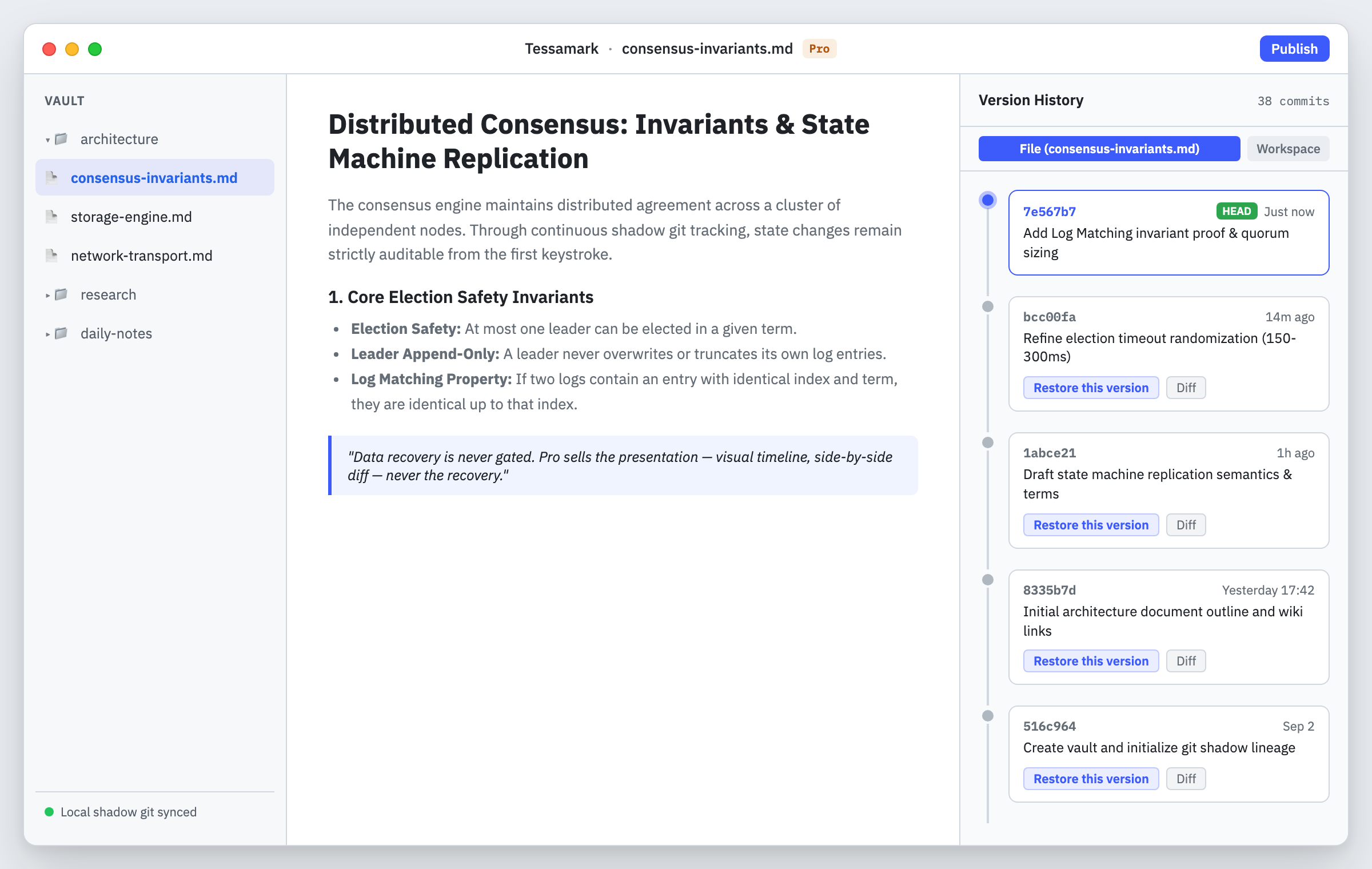
The version history panel tracks revisions over time, ready for inspection or restoration.
Commit version with a message
While automatic saves capture regular work, you can mark major milestones with explicit messages using Commit Version….
- Trigger Commit Version… from your document commands.
- Enter a descriptive summary message for this checkpoint.
- Confirm the commit. The message appears prominently in your timeline.
Restoring a file or workspace
Restoring past work is permanently free. You can restore an individual file or your entire workspace back to a historical checkpoint:
- Restoring a file: In the File scope, click Restore… on any revision. Tessamark asks for confirmation, replaces your current editor text with the selected historical version, and saves the restored state as a new version.
- Restoring the whole workspace: In the Workspace scope, click Restore… on any composite checkpoint. Tessamark presents a Restore Workspace preview sheet detailing how many files will be overwritten or recreated. Confirming the dialog rolls back every workspace file to that checkpoint and records a composite commit.
Comparing versions with side-by-side diff (Pro)
On Tessamark Pro, selecting any past revision in the timeline opens an interactive diff comparison. You can view your current text alongside the selected historical revision, with additions in green, deletions in red, and unchanged lines aligned.
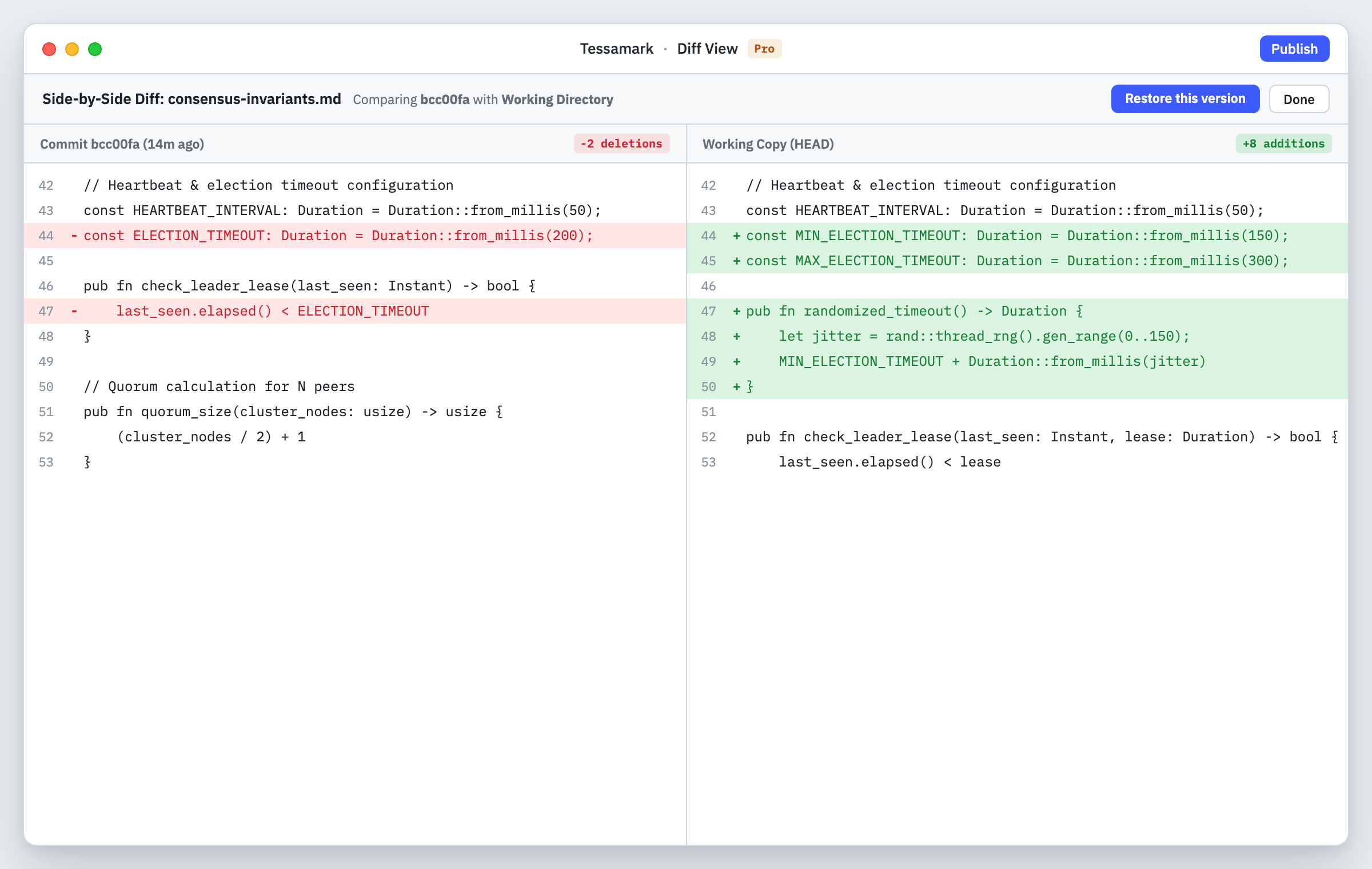
Side-by-side diff view highlights additions and removals between historical revisions.
Orphaned history and relinking
Tessamark tracks shadow repositories by file system inode and volume identity. If you rename or move a workspace folder across volumes, its shadow repository can lose its link to the folder path.
Tessamark detects these disconnected histories without deleting them. Under Settings → General → Version History, click Check for Orphaned History…. If an orphaned history directory appears, click Relink… and select the moved folder's new location on disk to reconnect your commits.
AI summary of changes (Pro)
When you pick two points on the timeline, Tessamark Pro can ask your configured AI model to describe what the change meant in plain prose, rather than counting changed lines. Only the unified diff between the two versions is sent, capped in size; if it was cut short, the summary starts with a note saying so. If nothing changed, it says "No changes." without calling the model. A cloud provider needs your API key; a local provider does not.